The dashboard is the screen most people land on right after signing in. It answers one question at a glance — how is the business doing right now? — and it doubles as the map to everything else. This tour shows you how to read it and how to move around from there.
Step 1 — Read your numbers
Click Dashboard in the sidebar. The tiles at the top show payments received, net total, outstanding amounts, today's bookings and out-of-stock alerts for the selected period. Change the Date range or Store at the top of the page to re-focus every tile and widget at once — pick a single location, or leave it on All Stores for the whole business.
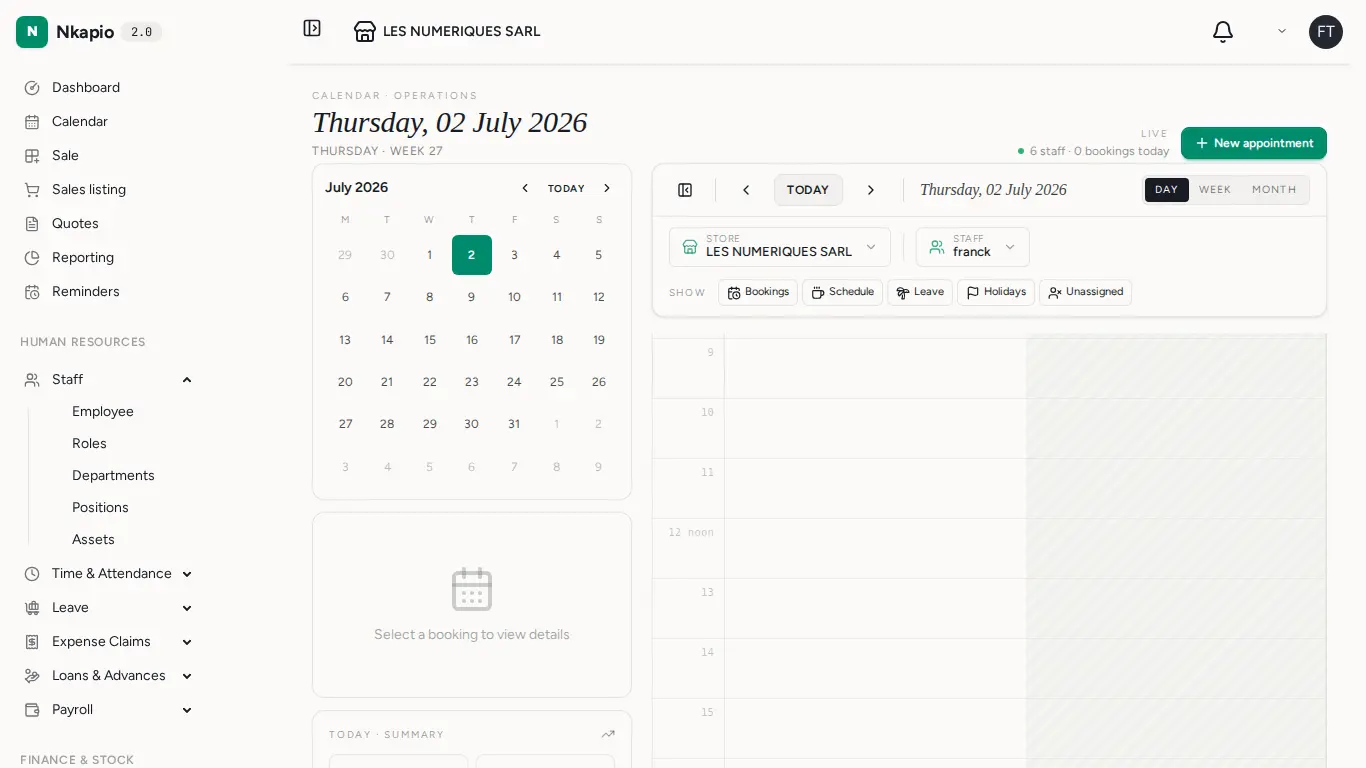
Which tiles you see depends on the modules your business uses: the money tiles (total paid, net total, outstanding) appear when sales or banking is switched on, "today's bookings" when the calendar is in use, and "out of stock" when you track inventory. If a tile is missing, that module simply isn't active for you — nothing is broken.
Step 2 — Your dashboard is built from widgets
Below the tiles is a grid of widgets — small cards showing a trend, a chart, a short list or a table (sales trend, top products, staff utilisation, upcoming appointments, and so on). Nkapio gives every business a starter dashboard chosen to match its line of work, so a salon, a shop and a clinic each open to a sensible default rather than a blank page.
The dashboard is yours to shape. Use the menu button in the top-right corner for Quick actions: add a widget, edit the current dashboard, or create an additional one. Widgets come in three sizes (small, medium, large) and can be dragged into the order you prefer. You can also keep several dashboards and share a dashboard with specific team members.
Two things decide whether a given widget appears: the module must be switched on for your business, and you must have permission to see that kind of data. That is why a colleague might see a widget you don't — it reflects each person's role, not a fault.
Step 3 — The sidebar is the map
Modules are grouped the way you work: day-to-day actions on top (Calendar, Sale, Sales listing, Quotes), then Human Resources, Finance & Stock, Operations and System. Groups expand on click, and you'll only see the sections your plan and permissions include.
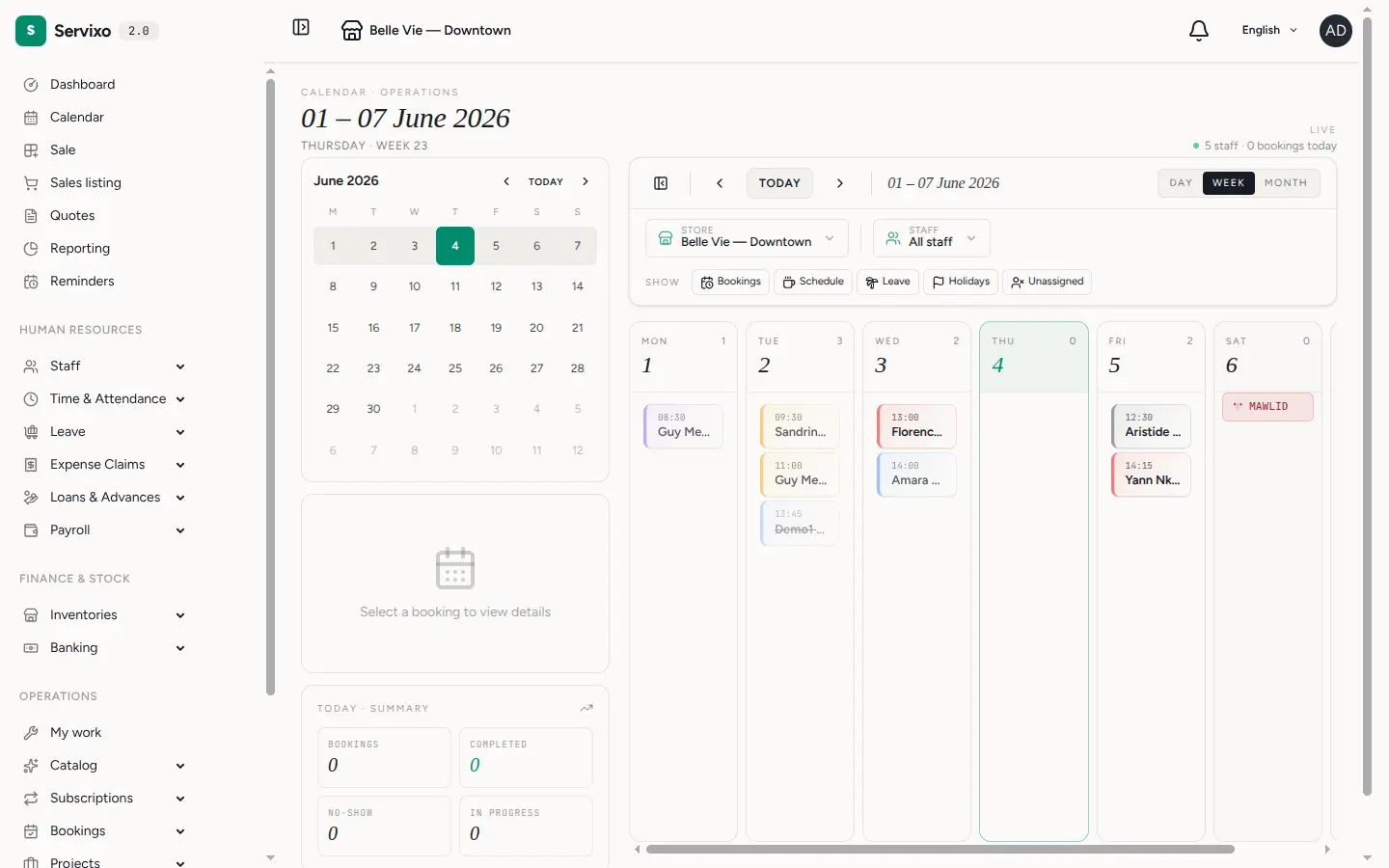
The two screens you'll open most are the Calendar, which shows every staff member's day side by side, and Sale, the point of sale where services, products, packages and gift cards are charged.
Tip: the bell icon in the top bar collects your notifications; the store button beside the logo switches between your locations.
Common questions
- A widget or a whole tile is missing. Either the module isn't active for your business or your role doesn't grant access to that data. Ask an administrator if you think you should see it.
- I don't have a Dashboard link at all. The dashboard is available to team members with reporting or booking access; without it, Nkapio simply opens on another screen you can use.
- A widget says there's no data. There's nothing to show for the selected period and store — widen the date range or switch the store filter.