If you operate more than one store or warehouse, stock transfers let you move products between locations without losing track of what’s where.
Step 1 — Open Stock Transfers
In the sidebar, expand Operations and open Stock Transfers. The list shows every transfer with its origin, destination and status.
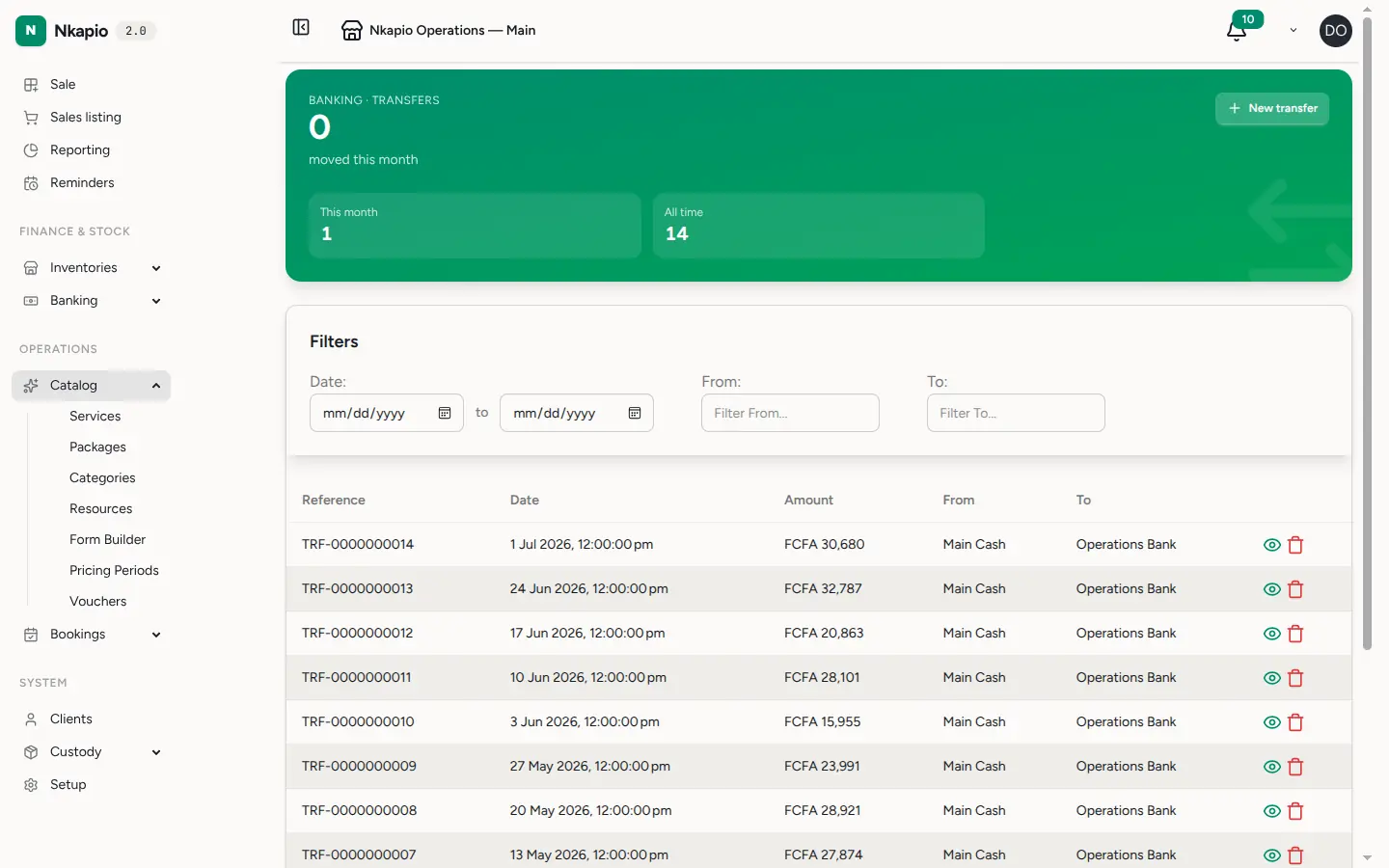
Step 2 — Create a transfer
Click New Transfer, choose the source and destination locations, then add the products and quantities to move. The source location’s stock is reserved until the transfer is confirmed.
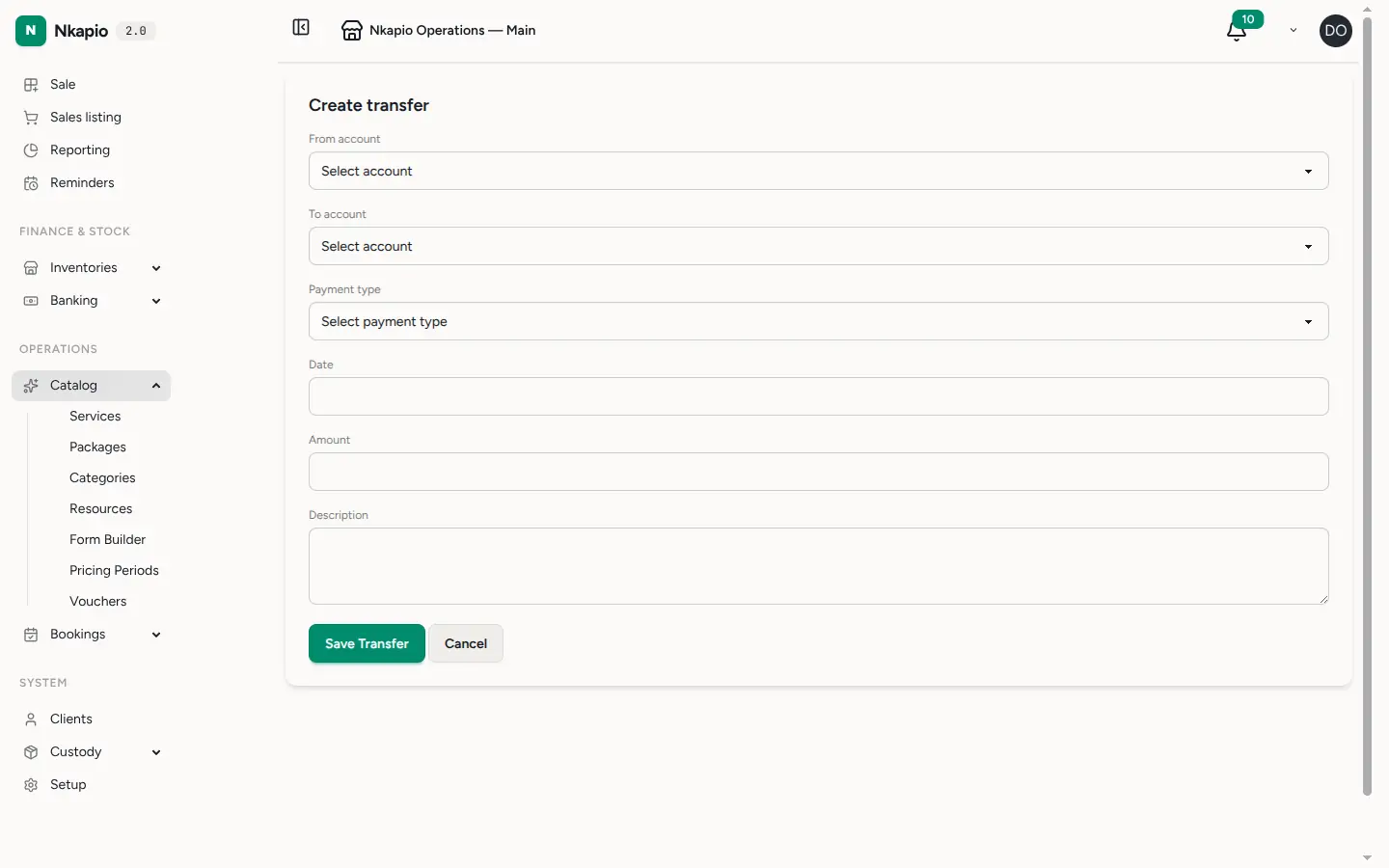
Step 3 — Manage your locations
Open Locations to see all your stores and warehouses. Each location has its own stock levels, so reports and low-stock alerts stay accurate per site.
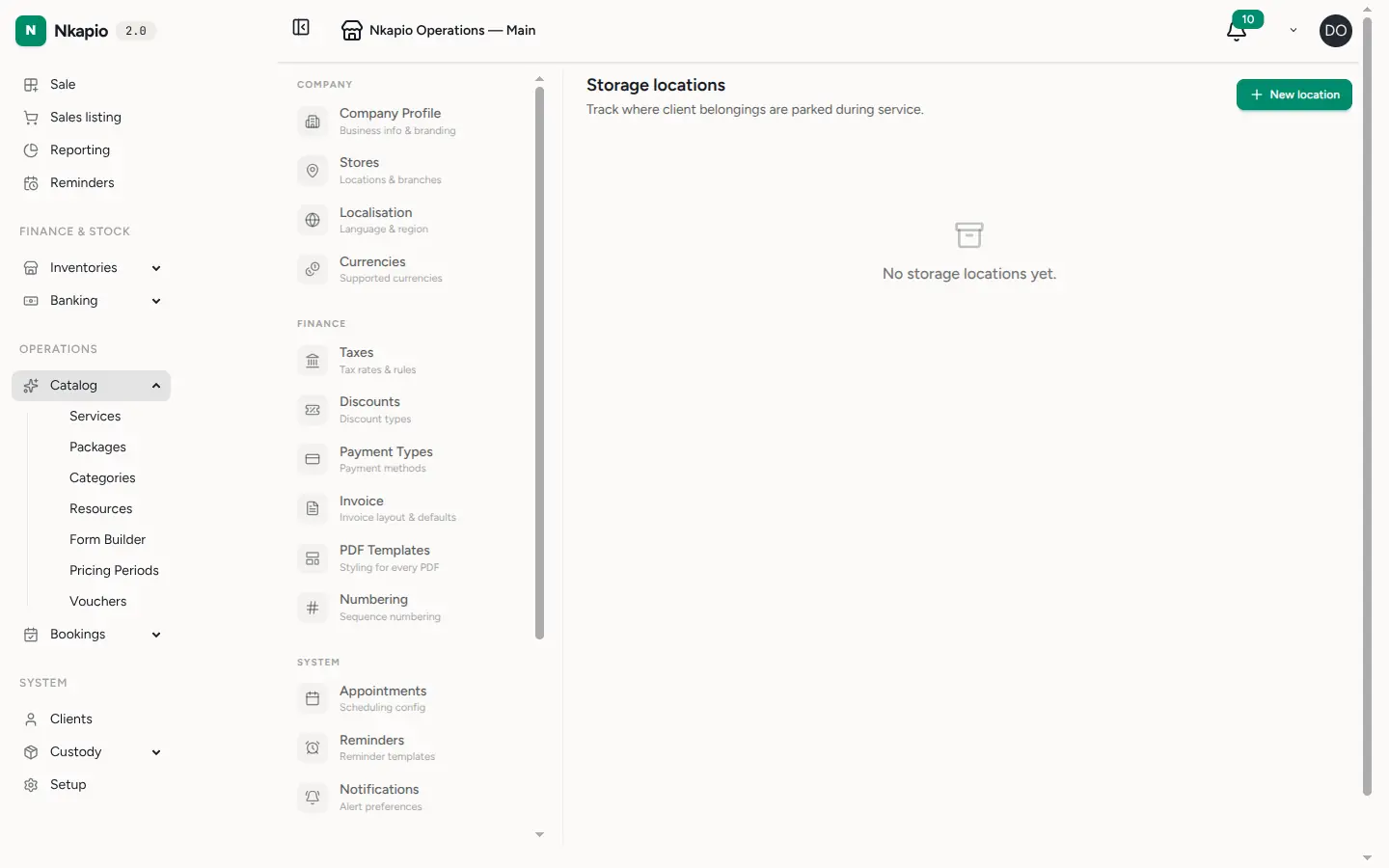
Tip: confirm receipt at the destination once goods arrive — stock only updates for good once both sides are confirmed.