The calendar is your operations cockpit: every staff member, every booking, every leave and holiday on one screen. It is where the front desk plans the day, where team leads spot who is free and who is stretched, and where each booking moves from confirmed to checked in to done. For most teams it is the first thing they see after signing in — it lives at both the home screen and under Calendar.
Before you dive in, two things shape what you see. Availability — the shaded off-hours behind each staff column — is drawn from each person's working schedule, so the calendar is only as accurate as the schedules behind it. And what you can see follows your permissions: staff schedules, approved leave and public holidays only appear if your role is allowed to read them, so a colleague may see a slightly different overlay than you do.
Step 1 — Pick your view
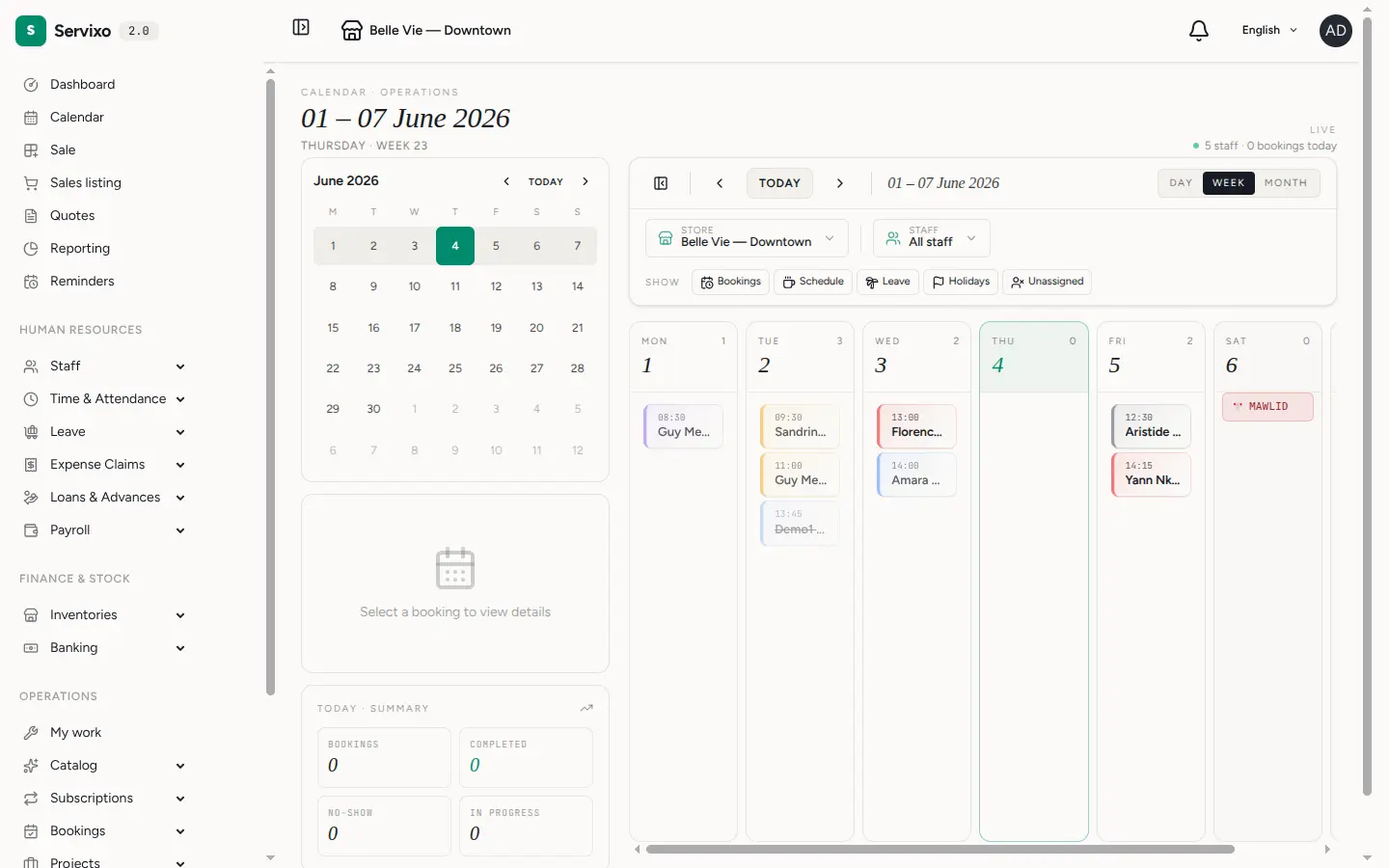
Use the Day / Week / Month switch in the toolbar. Each answers a different question:
- Day — a time grid with one column per staff member (plus an Unassigned column for bookings with no one attached yet). This is the view for running the floor: you see exactly who is booked, when, and where the gaps are.
- Week — the whole team's bookings across seven days, side by side, for planning the week ahead.
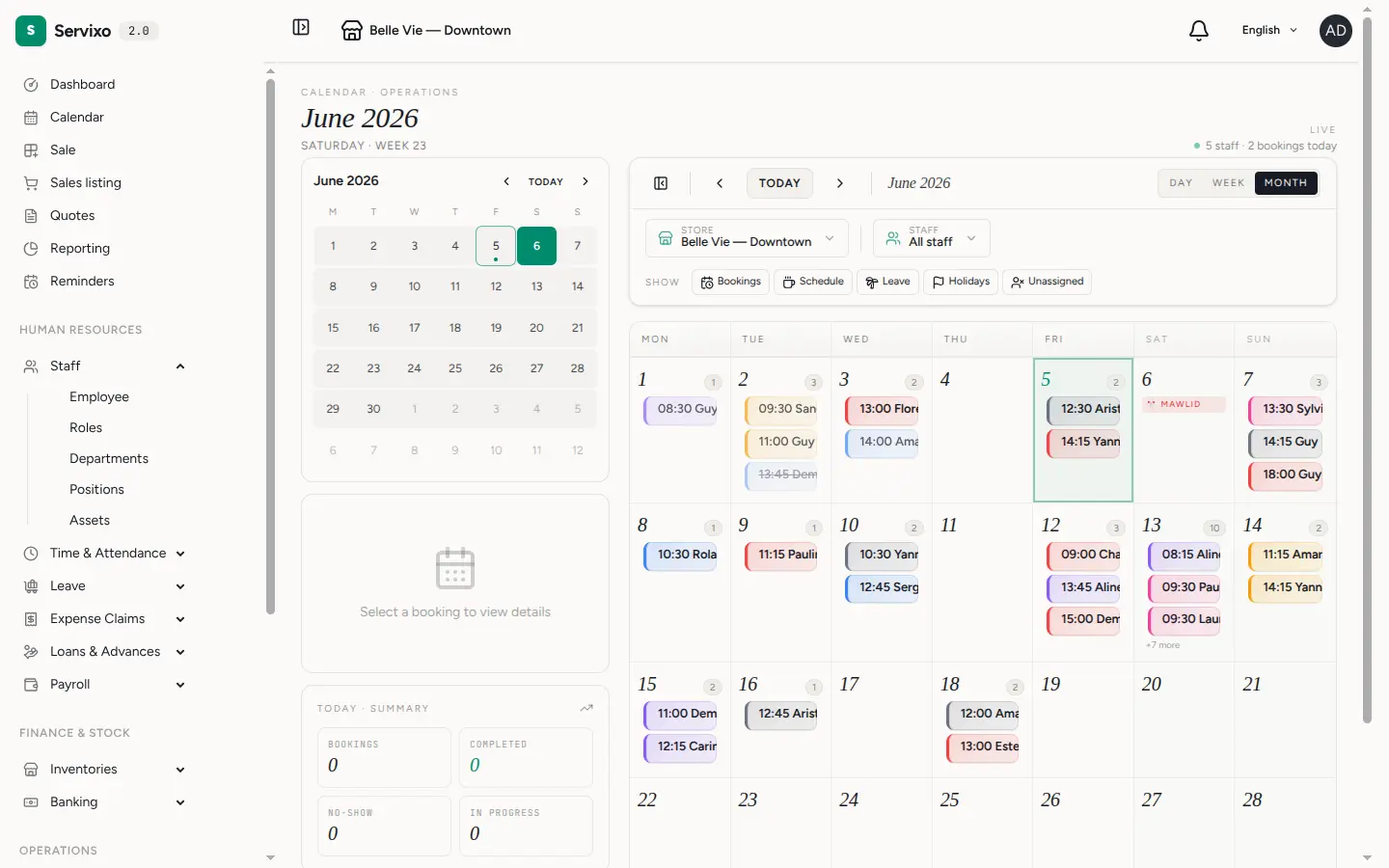
- Month — a bird's-eye view of how busy each day is.
Click any booking chip to open its details in the panel on the left. Use the arrows to step backward and forward — by a day, a week or a month, matching your current view — and Today to jump straight back to the current date.
Step 2 — Filter by store and staff
The Store and Staff filters narrow the grid. By default the calendar opens on your current store and your own column, so you land on your own day first. Open the Store dropdown to focus one location or select All stores to see everything; open Staff and tick the people you want, or choose All staff to bring back the whole team.
The two work together: the staff list only offers people who work in the store you have selected, and changing store resets the staff filter so you never end up looking at an empty grid.
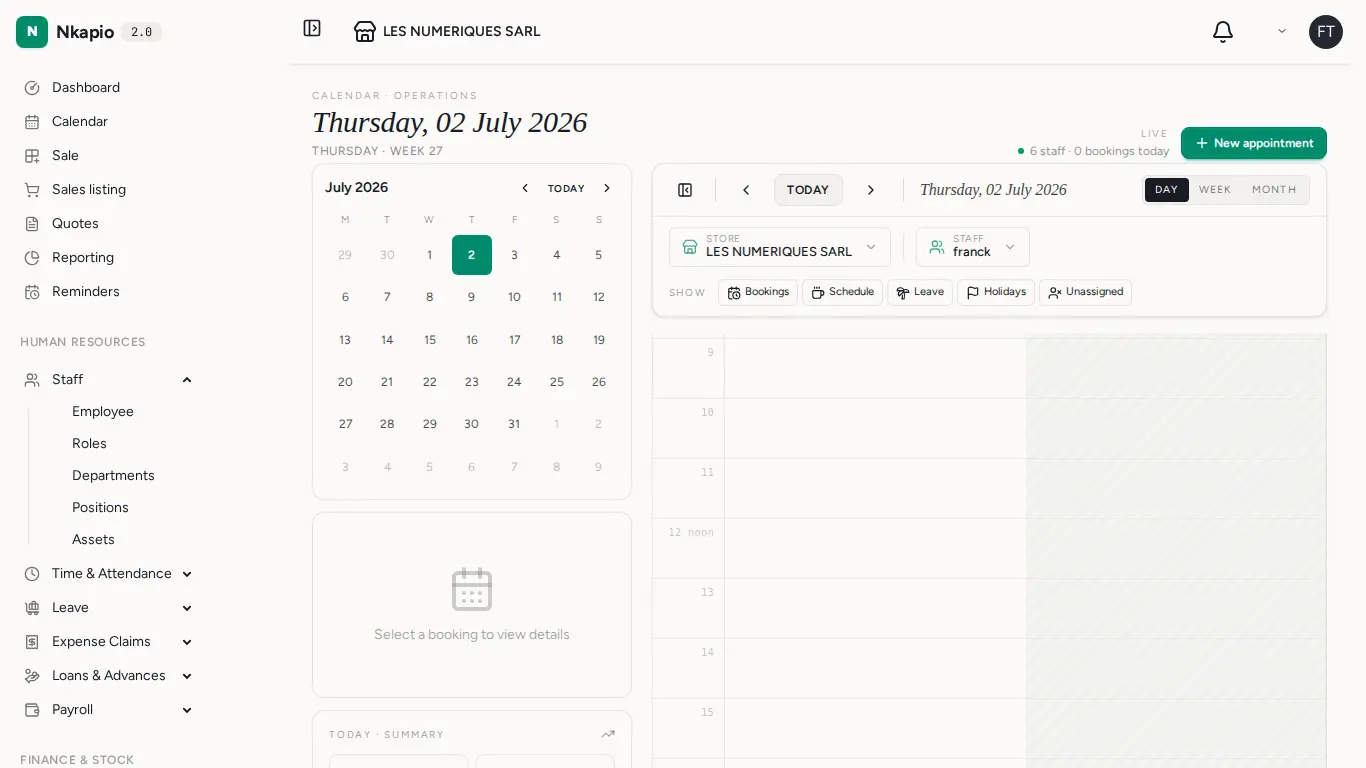
Each booking is colour-coded by the service's category, and each staff member has a stable colour dot in their column header, so the grid stays readable at a glance. A small badge on every booking shows where it is in its lifecycle — Confirmed, Checked in, Live (in progress), Done, Cancelled or No-show — so you can read the state of the day without opening a single card.
Step 3 — Toggle what you see
The Show chips — Bookings, Schedule, Leave, Holidays and Unassigned — layer information onto the same grid so you can dial the noise up or down:
- Bookings — the appointments themselves. (Anything already checked in or in progress stays visible even with this off, so you never lose sight of someone mid-service.)
- Schedule — each person's working hours, with off-hours shaded behind their column, so you never book someone outside their shift.
- Leave — approved time off, blocked out on the person's column.
- Holidays — public holidays, marked across the top of the day.
- Unassigned — the extra column for bookings that don't yet have a staff member attached.
Together they mean the schedule, the days off and the holidays all sit on top of the bookings, so you never book someone who is away.
Step 4 — Zoom out with the month view
Month view shows the load of every day at a glance. Click any day to drop straight into its day view, ready to work.
The detail panel
Selecting a booking opens its detail panel on the left: the service, the scheduled time and duration, the client and the assigned staff member. From here you can also move it along with the quick actions — Confirm, Check in, Start and Complete — which appear one at a time depending on where the booking is in its lifecycle and what your role allows. The same panel holds the mini calendar and the day's reminders.
Tip: the mini calendar on the left jumps to any date, and Today brings you back instantly.
Tips & FAQ
- Why is a staff column mostly shaded? The shading is their off-hours, pulled from their working schedule. If it looks wrong, fix the schedule rather than the calendar.
- Someone's schedule, leave or holidays aren't showing. Those overlays need read permission for the relevant area. If you can't see them, your role may not include that access.
- I don't see the New appointment button. Creating bookings needs the right permission — ask an administrator if it's missing.
- How do I move a booking to another time? Open it and edit its time — see Reschedule & cancel.