Plans change. A client calls to move an appointment, cancels at the last minute, or simply never turns up. Nkapio keeps the trail through all of it: a rescheduled booking stays linked to its original, cancellations keep their reason, and no-shows are recorded so your attendance figures stay honest.
Anyone on your team with the right booking permission can do this — usually front desk or a manager — from the Bookings cockpit or the Calendar. Clients who booked online can also reschedule or cancel themselves from the status link in their confirmation, and your dashboard updates live when they do.
How a booking moves through its life
Every booking follows a simple path: it starts pending, becomes confirmed, then checked in, in progress, and finally completed. Three side exits break that flow — cancelled, no-show, and rescheduled. Reschedule and cancel are available while a booking is still ahead of you (pending or confirmed); once it is completed, cancelled, or already marked a no-show, those actions close off — the record is final.
Step 1 — Open the booking
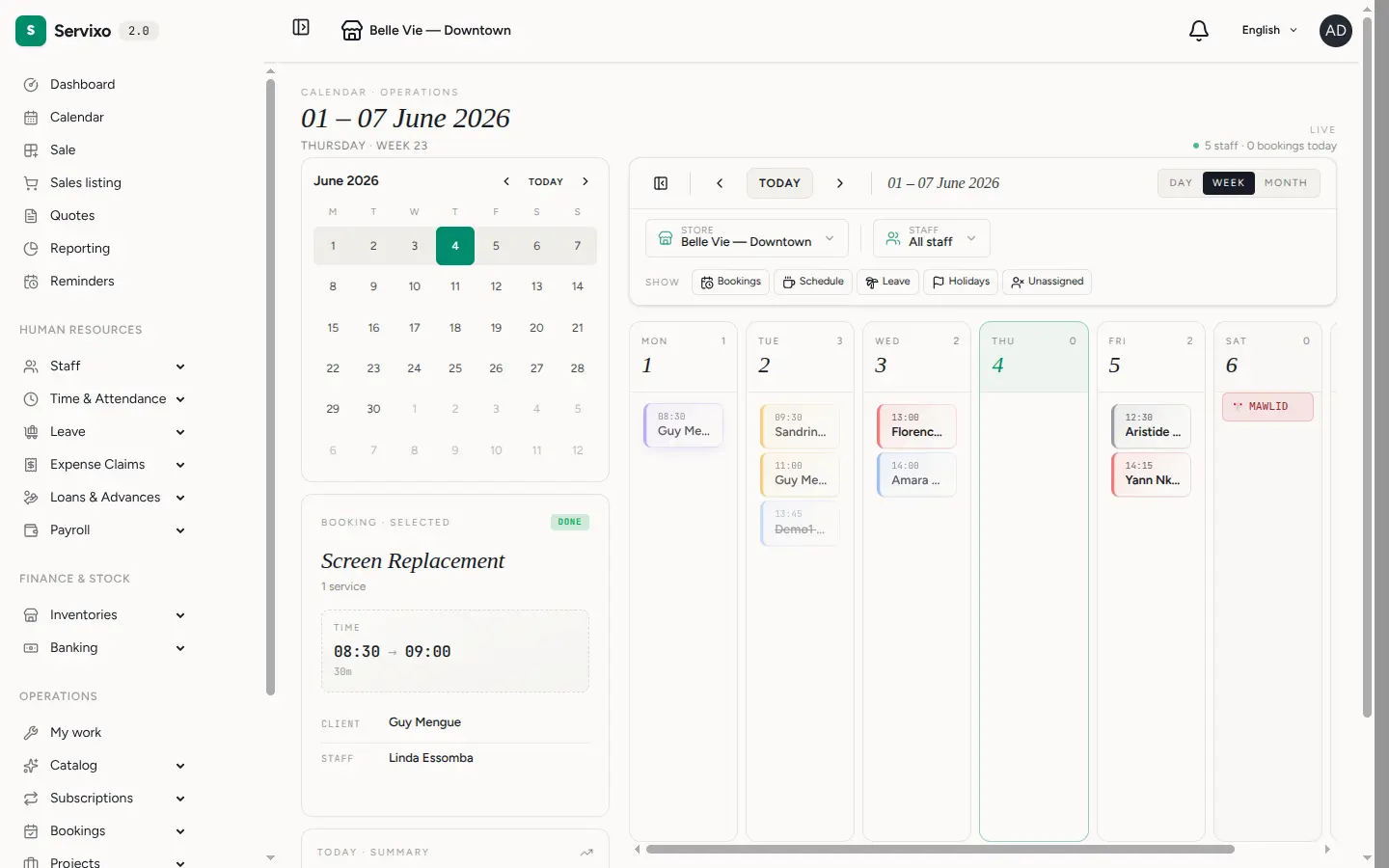
Click the booking on the Calendar (its detail opens in the left panel) or open it from the Bookings cockpit to get the full drawer with every action.
Step 2 — Use the action bar
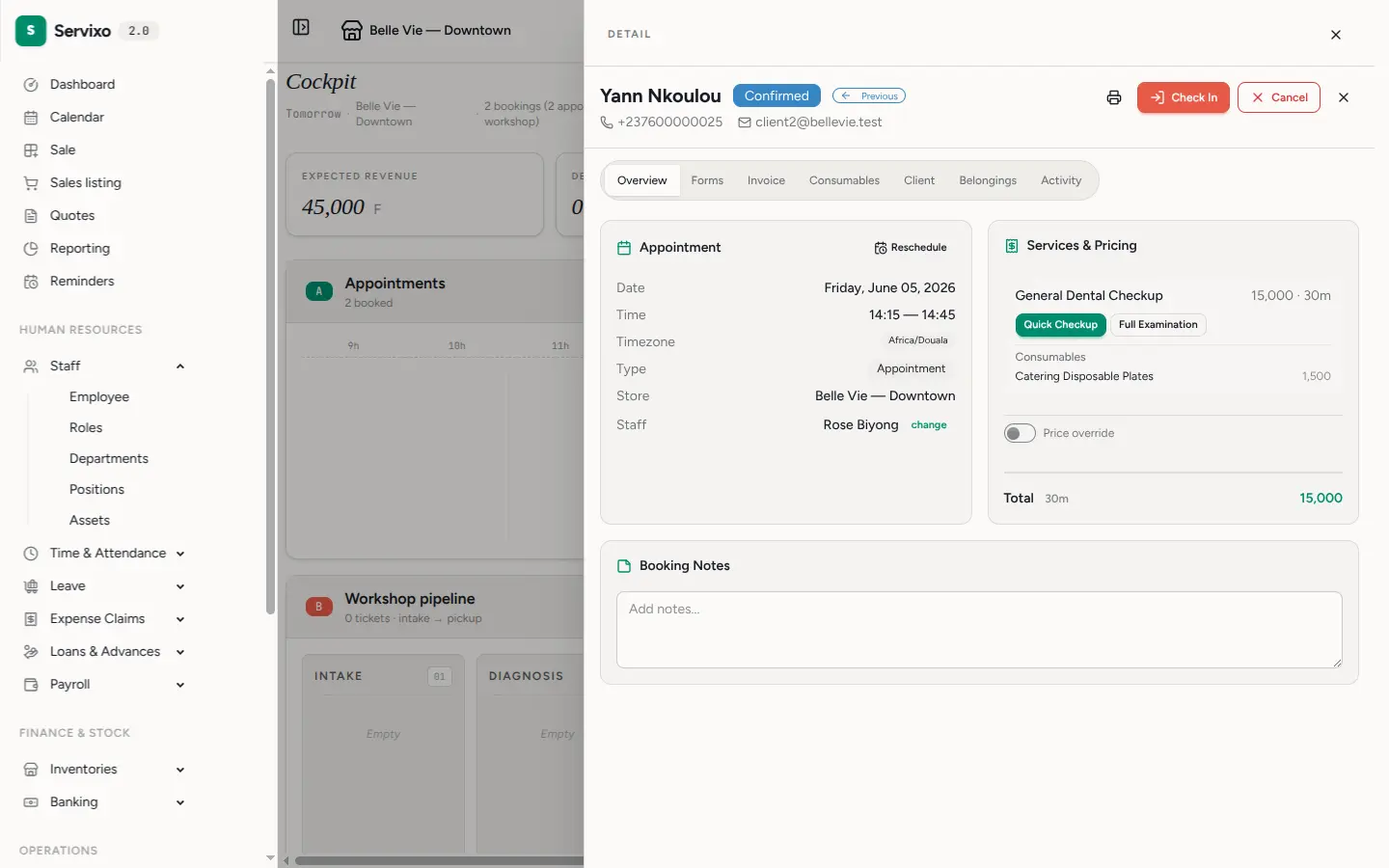
The drawer's action bar changes with the booking's status. A confirmed appointment offers Check In, Cancel and Reschedule; once service is under way you'll see Complete. The Invoice tab is always there to bill the visit when the work is done.
Step 3 — Reschedule
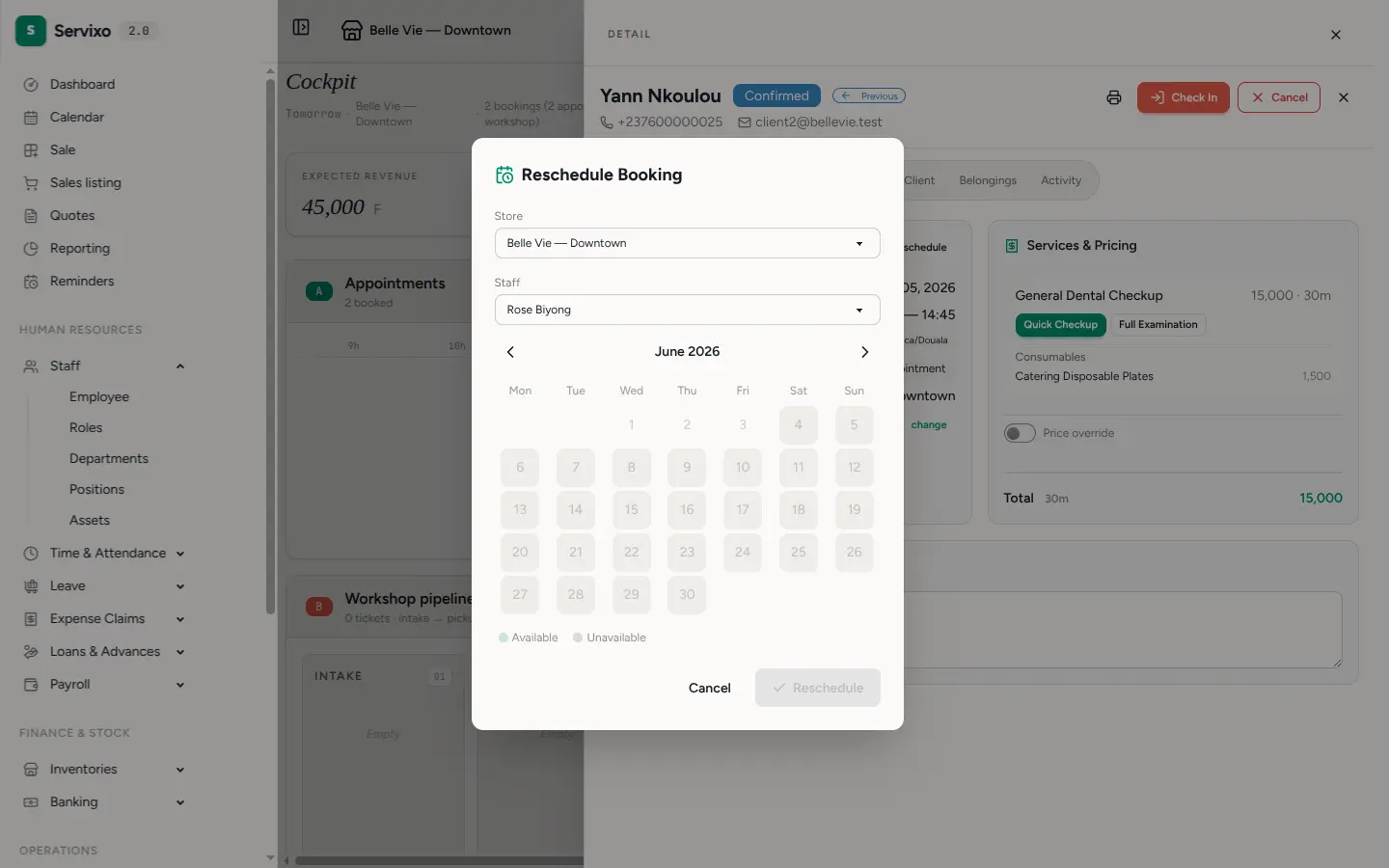
Click Reschedule to open the calendar picker. Choose a new date, then pick a free slot from the times Nkapio offers — you can also switch the store or the staff member if the client needs a different one. Confirm, and the move is done in one step.
Behind the scenes Nkapio creates a fresh booking at the new time and marks the old one rescheduled, so both stay in your history — the old one reads "rescheduled to", the new one "rescheduled from". Any deposit already paid moves across with it, completed intake forms are copied over, and availability is re-checked so you can't double-book the new slot. If the client is watching their status link, it forwards them automatically to the new appointment.
Step 4 — Cancel or mark a no-show
To cancel, click Cancel, optionally type a short reason, and confirm. Nkapio releases the slot — so a waitlisted client can be offered it — cancels any pending forms, and stamps who cancelled, when, and why.
If a deposit was collected, what happens next depends on timing: cancel inside the service's cancellation notice window and part or all of the deposit may be forfeited as a penalty; cancel with enough notice and the deposit is refunded in full. Nkapio shows the exact amount before you confirm.
If the client simply never arrived, mark the booking as a no-show instead of cancelling — it keeps your attendance statistics accurate and can trigger a no-show penalty where you've configured one. Nkapio also tidies up on its own: confirmed or checked-in appointments whose date has passed are swept to no-show automatically overnight, so stale bookings never linger on the calendar.
Tip: once the service is done, bill it straight from the same drawer on the Invoice tab — no need to leave the booking.
Good to know
- Reschedule instead of cancel-and-rebook. Rescheduling keeps the link between the two appointments and carries the deposit over, so you keep the history and don't re-collect money.
- Set your rules once. The cancellation notice period, penalty percentage and the no-show timing live in Settings → Appointments and on each service, so the same policy applies everywhere.
- Permissions apply. The Cancel and Reschedule buttons only appear for team members whose role allows them.