A diagnosis anchors the patient's clinical journey. Recording one captures what the patient has, how serious it is and why you concluded it — in a structured form the rest of the record can build on. Clinicians and other providers who are on the patient's care team record diagnoses during a visit or after reviewing test results.
How diagnoses work
Each diagnosis carries a short title, an optional standard code, a severity and a status, and stays with the patient over time rather than being a one-off note.
- Code system. You can classify a diagnosis under a recognised standard — ICD-10, DTC / OBD-II, SNOMED CT, LOINC — or record a Custom code. Using a standard code makes conditions consistent across visits and comparable in reports; ICD-10 and DTC offer live code search so you can pick the right code by name.
- Severity. One of Mild, Moderate, Severe or Critical (Moderate by default), shown as a colour-coded badge so the care team can read urgency at a glance.
- Status & the patient's active problems. A new diagnosis starts as Active. Active, Chronic and Monitoring diagnoses make up the patient's active problems — the summary shown at the top of the clinical workspace. Marking a diagnosis Resolved stamps a resolution date and drops it from that list, so the active-problems view always reflects what the patient is living with now.
- Supporting results. You can attach the client's recent test results to a diagnosis, so the evidence behind your conclusion travels with it.
Step 1 — Open the patient's clinical workspace
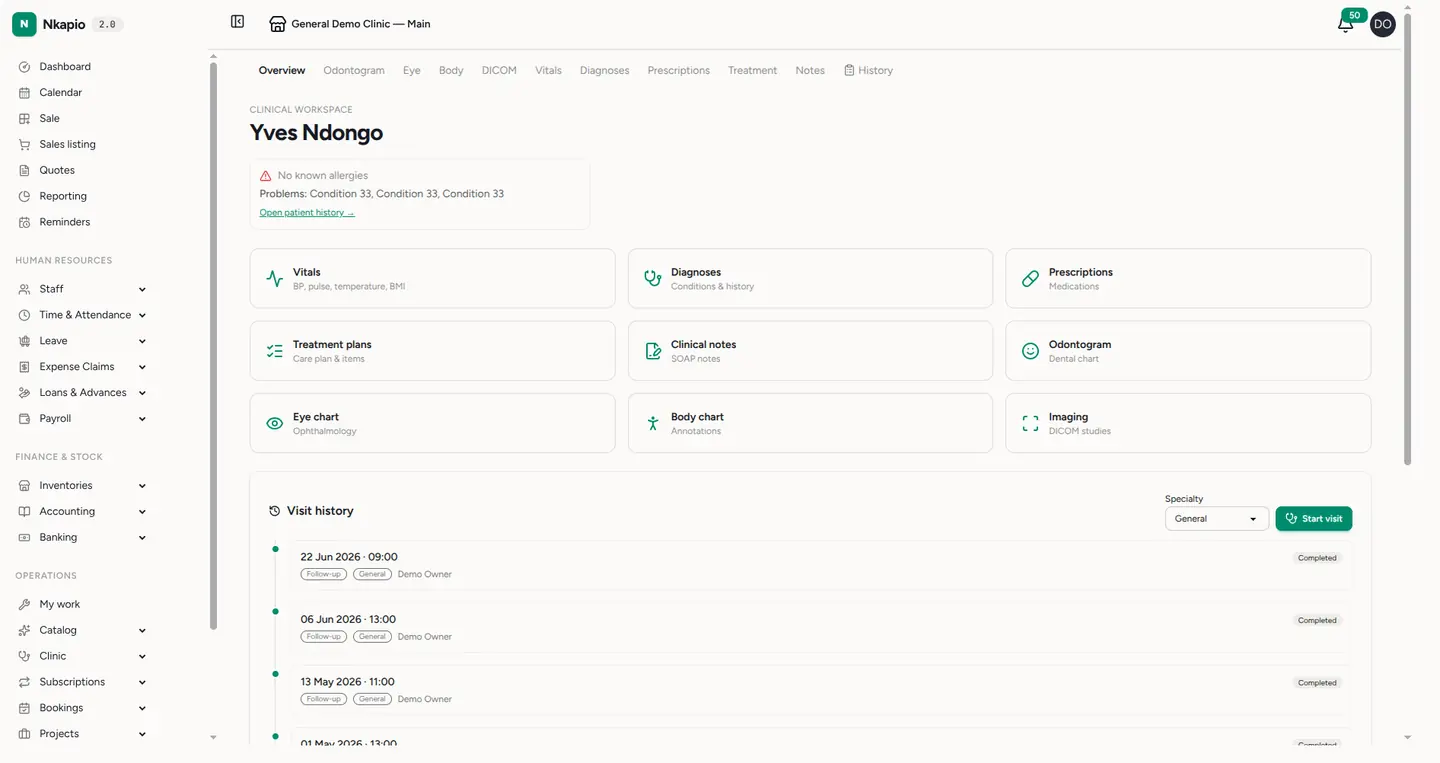
In the sidebar, open Clinic → Patients and click a patient. Their clinical workspace opens: allergies and active problems at the top, quick cards for Vitals, Diagnoses, Prescriptions, Treatment plans, Notes and the specialty charts, and the full visit history with a Start visit button.
Step 2 — Open the Diagnoses tab
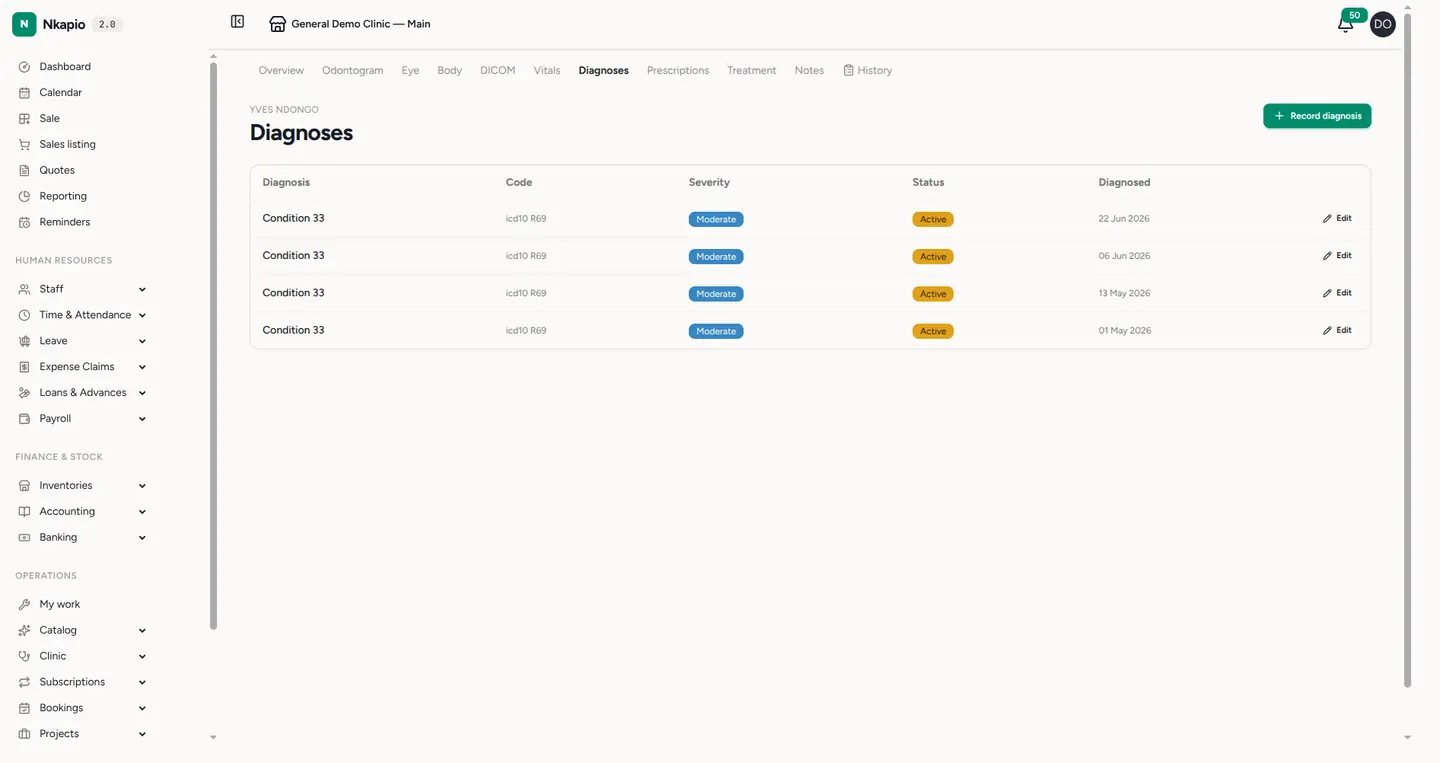
Click the Diagnoses tab (or the Diagnoses card). Every condition is listed with its code, severity, status and the date it was diagnosed. Use Edit on any row to revise its details.
Step 3 — Record a diagnosis
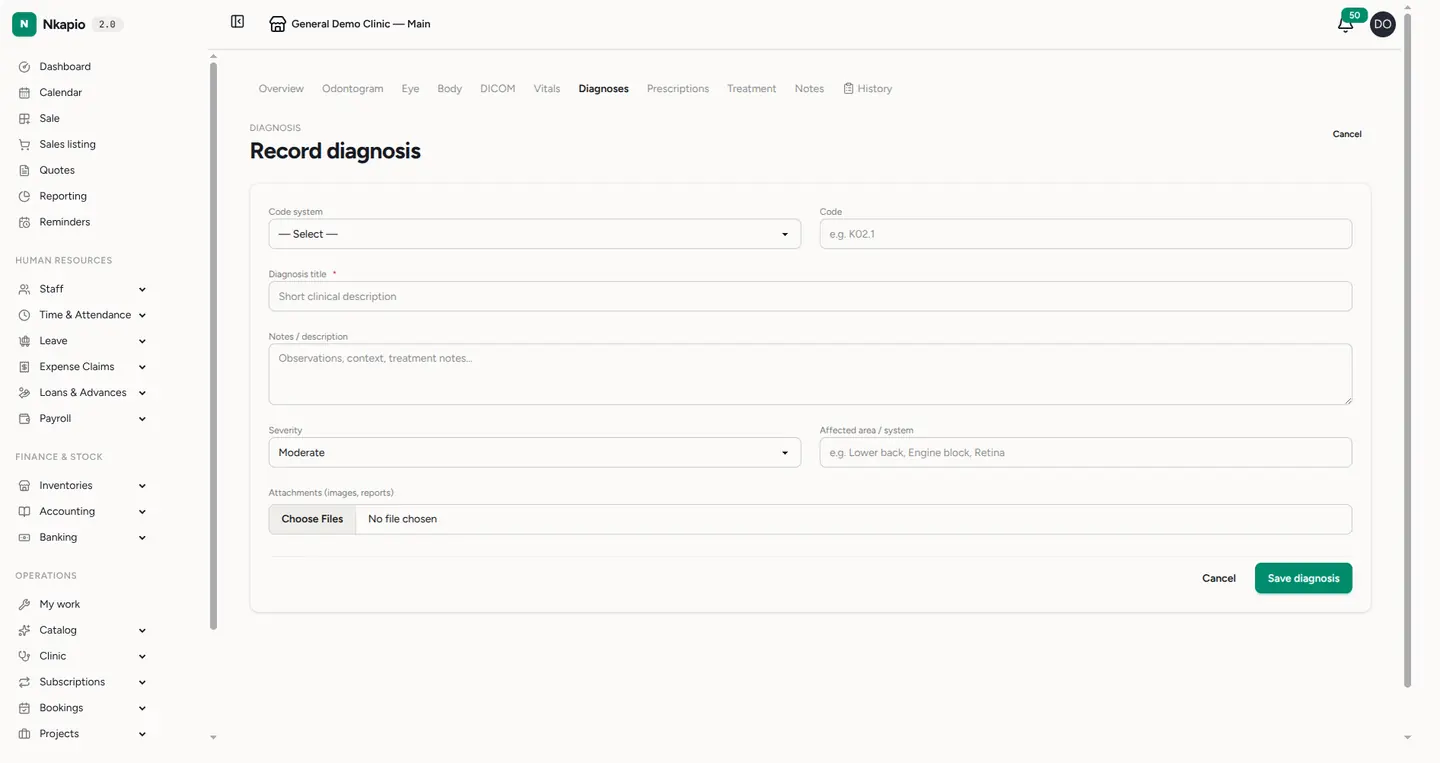
Click Record diagnosis and fill in the form:
- Code system and Code — e.g. ICD-10,
R69. For ICD-10 and DTC you can search by name and pick a code; other systems accept a code typed by hand. Both are optional. - Diagnosis title — a short clinical description. This is the only required field.
- Notes / description — findings, context, reasoning.
- Severity — Mild, Moderate, Severe or Critical (Moderate is preselected).
- Affected area / system — e.g. lower back, retina.
- Supporting test results — tick any of the client's recent results to link as evidence. This section appears only when the client has results on file.
- Attachments — up to three images or PDF reports (JPG, PNG, WebP, PDF).
Click Save diagnosis. It appears immediately in the Diagnoses list with an Active status, and the date diagnosed is recorded automatically.
Step 4 — Track it over time
A diagnosis is meant to be followed, not filed away. Reopen any condition with Edit to update its notes, severity, code or attachments as the picture changes. From the patient's active problems you can mark a diagnosis Chronic (an ongoing condition to manage) or Resolve it once the patient has recovered — resolving records the resolution date and removes it from the active-problems summary. Link the patient's prescriptions and treatment plans from the same workspace tabs to complete the plan of care.
Tips & common questions
- What's the minimum I need to save? Just a diagnosis title. Everything else — code, severity, notes, attachments — can be added now or filled in later.
- Why use a standard code? ICD-10 and the other systems keep conditions consistent between visits and make your clinical reports comparable. When no code fits, a clear title alone is fine.
- A resolved diagnosis disappeared from active problems — is it lost? No. It stays on the Diagnoses list with a Resolved status and its resolution date; only the active-problems summary hides it.
- Who can record diagnoses? Providers with clinical permissions who are on the patient's care team (or who have view-all-patients access).