Nkapio tracks working time in two complementary ways: timesheets for the hours spent on projects and tasks (with a billable flag), and attendance for daily check-in / check-out. Both feed payroll and reporting, and managers approve submitted timesheets before they count.
Before you start: attendance needs each employee to have an active work schedule assigned — the schedule defines expected hours, the grace period used to flag lateness, and breaks. Set these up first under Work schedules. Managing other people's time also requires HR permission; without it, staff can still log and check in for themselves.
Timesheets — log time against work
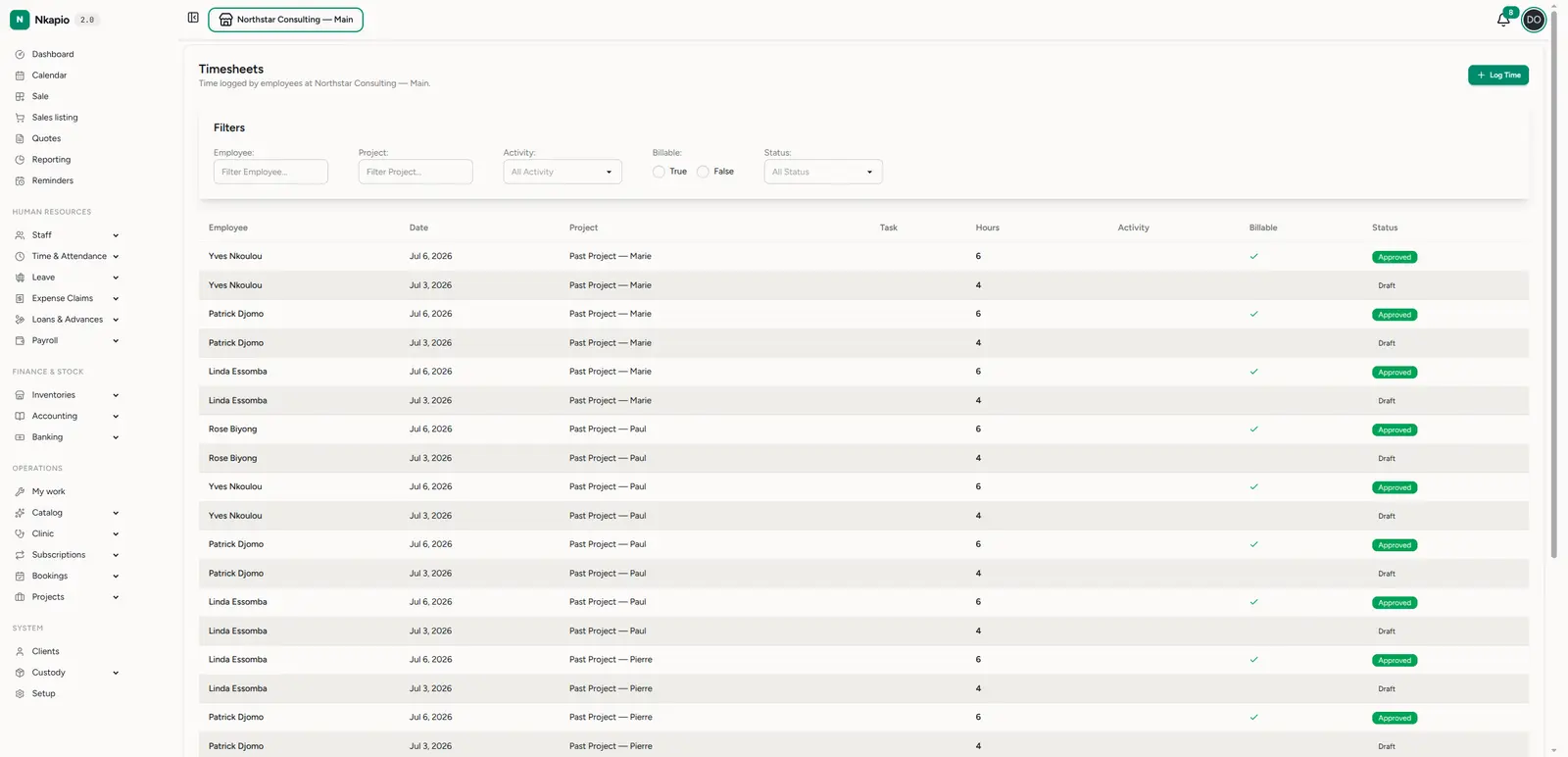
Open Staff → Timesheets (/staff/timesheets). Each entry records the
employee, date, project, task, hours, activity, whether
it's billable, and its status (Draft, Submitted, Approved). Filter by
employee, project, activity, billable or status to focus the view. Click Log
Time to add an entry.
Only draft entries can be edited; submitting one locks it and sends it for approval. A few guardrails keep the data clean: you can't log time on a public holiday, on an approved leave day, or against a task that's already done or cancelled. Set an hourly rate on a billable entry and Nkapio computes its billable amount for you.
Attendance — daily check-in / check-out
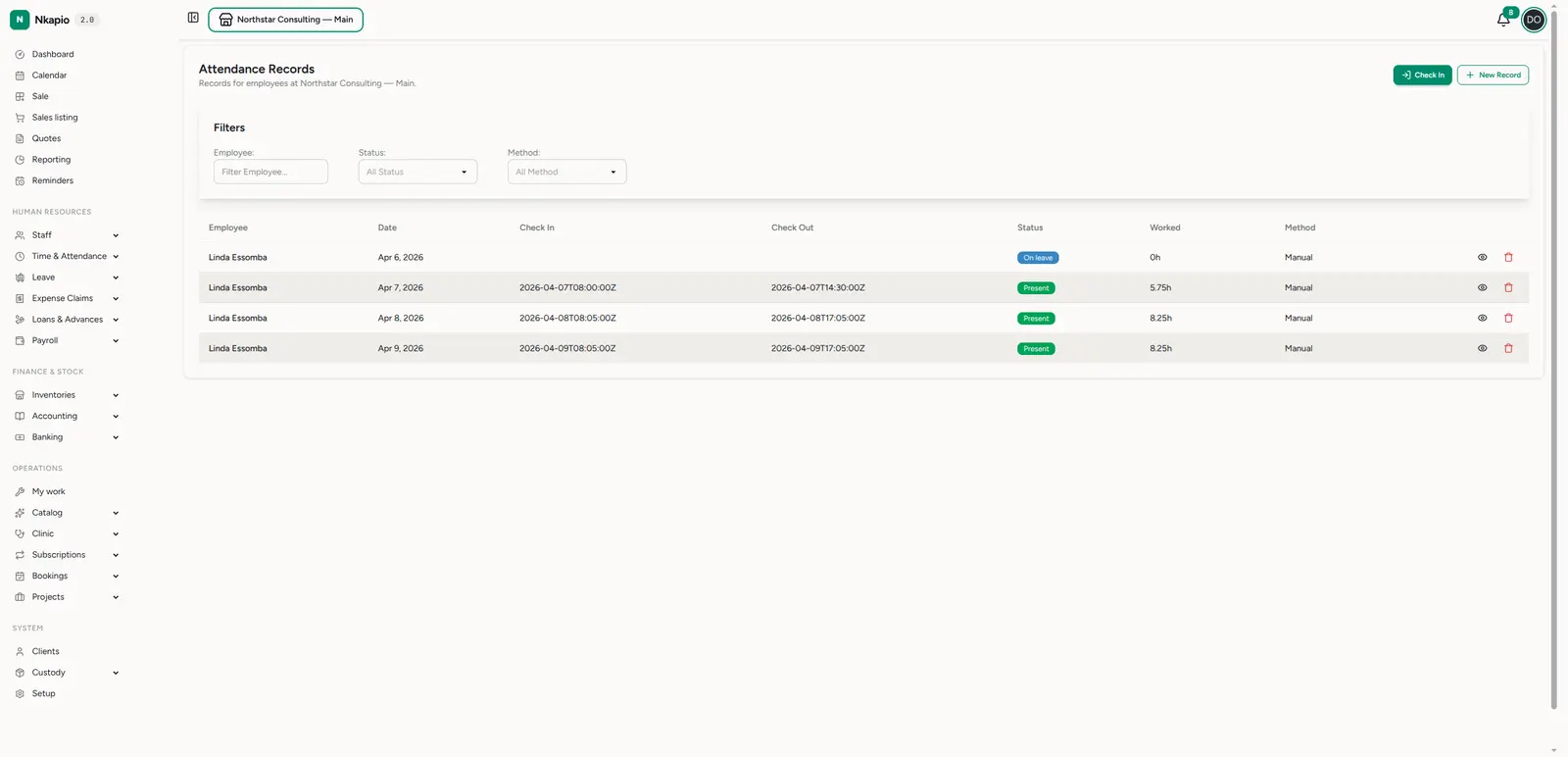
Open Staff → Attendance (/staff/attendance_records) for the clock-in
record. Each row shows the employee, date, check-in and check-out
times, a status (Present, Late, On leave, …), the hours worked (computed
from the times), and the method (manual or self check-in). Use Check In
for a live clock-in, or New Record to enter one by hand.
Against the employee's schedule, Nkapio works out whether they were late (beyond the grace period) and splits the day into regular, overtime and undertime hours. On check-out those overtime/undertime hours are posted to the time bank when it's enabled. Live check-in is limited to today and a small window of recent days set in your HR settings — you can't check in for a future date.
Approvals — sign off before payroll
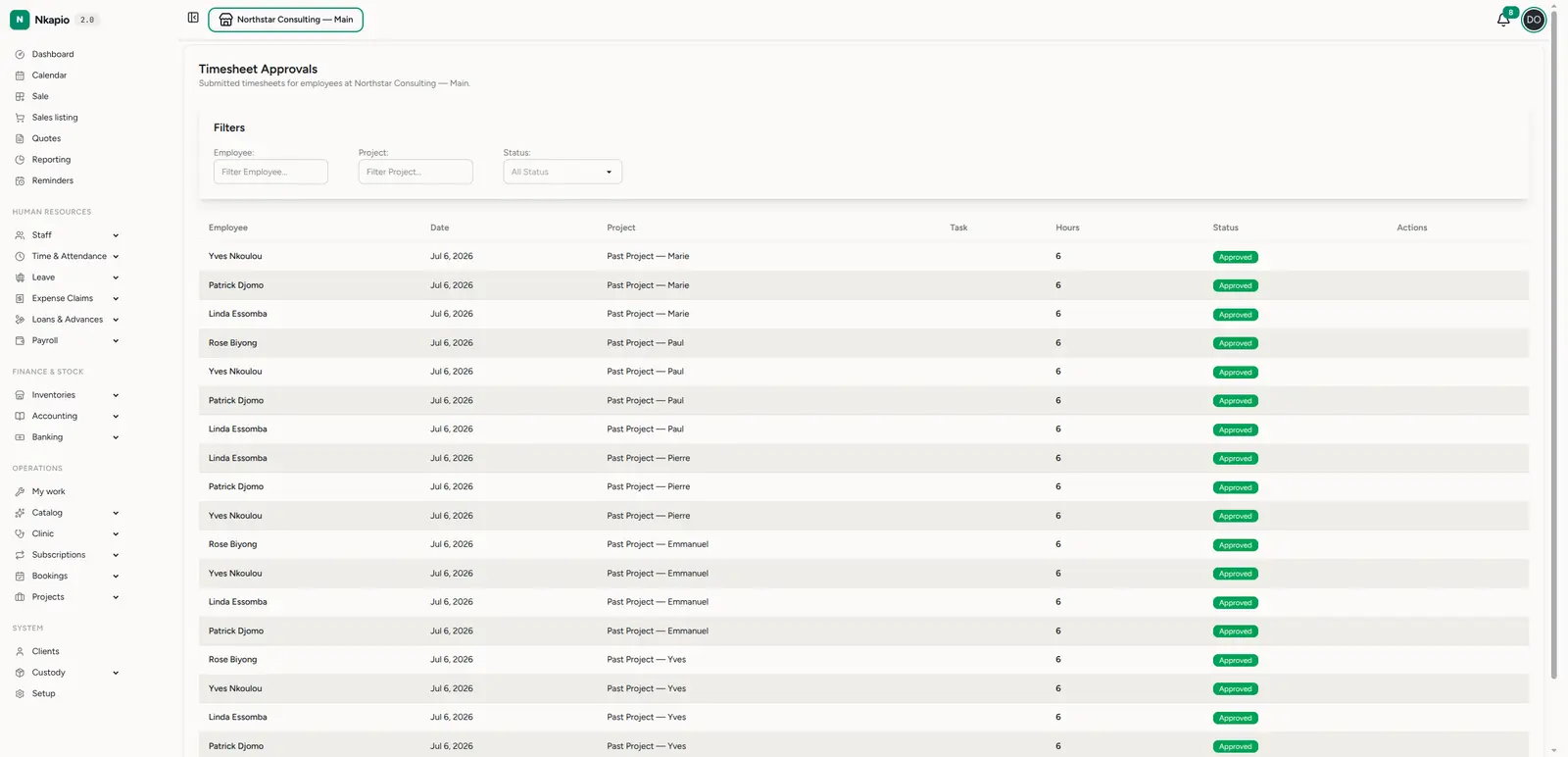
Submitted timesheets land in Staff → Timesheet approvals
(/staff/timesheet_approvals). Review the employee, project and hours, then
approve or reject each one. Rejected entries go back to the employee to
revise and resubmit. Only approved time should flow into payroll, so this step
is your control point.
Tips
- Approve on a regular cadence — a weekly approval habit keeps payroll clean and disputes rare.
- Use the billable flag — it separates client-billable hours from internal time for accurate project reporting.
- Attendance vs timesheets — attendance answers "was this person at work?"; timesheets answer "what did they work on?". Use both where relevant.
FAQ
Which one drives payroll — attendance or timesheets? That depends on your payroll configuration, which can count attendance days, timesheet hours, or both. Attendance is the default source.
An employee can't check in — why? They most likely have no active work schedule for that weekday. Assign or fix their work schedule and try again.